
VS Code Remote-SSH + AI Agents: The Ultimate Server Debugging Stack
We’ve all been there. You are staring at a server log, sleep-deprived, 48 hours deep into a bug that refuses to die.
Recently, I hit a wall with a server issue that just wouldn't budge. I tried every stack trace analysis and every forum fix, but nothing worked. Desperation set in, and I started looking for paid tools. I almost pulled the trigger on a license for Claude Code (an autonomous AI coding agent), hoping it could just SSH in and fix the mess for me.
But before spending the money, I took a step back. I realized I already use "Agentic AI" modes in my local VS Code workflow. I wondered: Could I bring that same Agentic power to my remote server without buying new tools?
Here is how I went from a broken server to a fixed deployment using VS Code, SSH, and AI Agents.
The First Attempt: The Terminal Wrap (and why it failed)
My initial thought was simple. I opened my local VS Code, opened the integrated terminal, and SSH'd into my server:
Bash
ssh user@my-server-ip
I then activated my AI Agent in the editor and asked it to "look into the issue" based on the terminal output.
The Result: It was a disaster. The agent worked for the first 2-3 commands, but then it completely lost context. It stopped responding, couldn't read the file system deep enough, and the connection between the "Smart Editor" and the "Dumb Terminal" broke down. It wasn't a reliable solution for complex debugging.
The Breakthrough: Remote - SSH
Then, the lightbulb went on. Instead of treating the server as just a terminal window, what if I treated the server as the workspace?
If I could make VS Code believe that the remote server files were local, the Agentic Mode would have full access to the file system, logs, and environment variables—just like it does on my MacBook.
The Solution Workflow
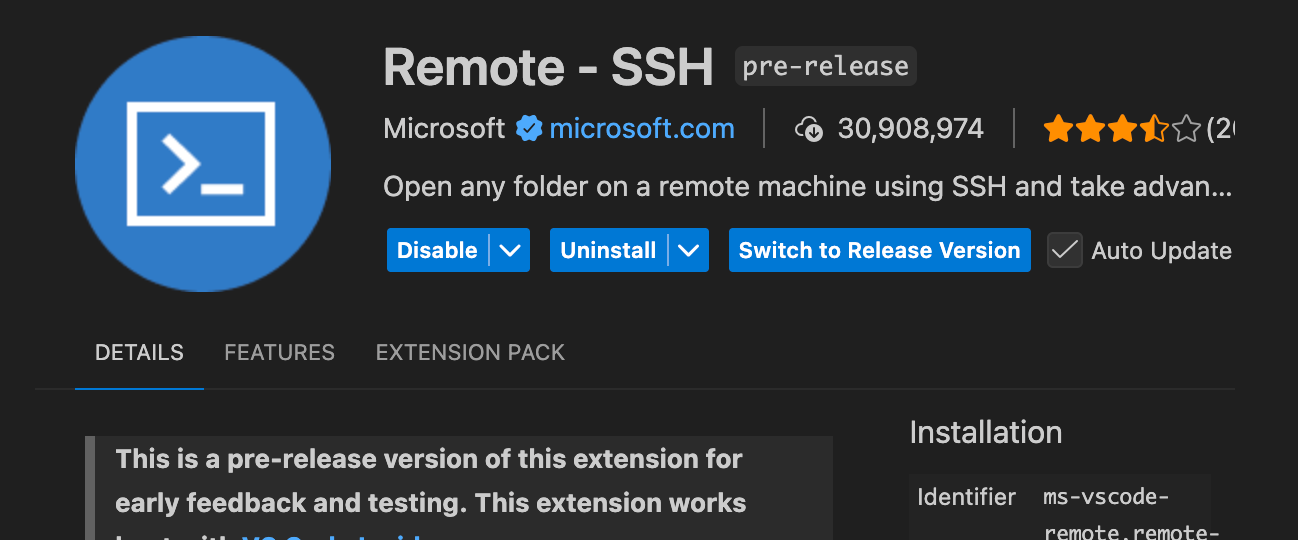
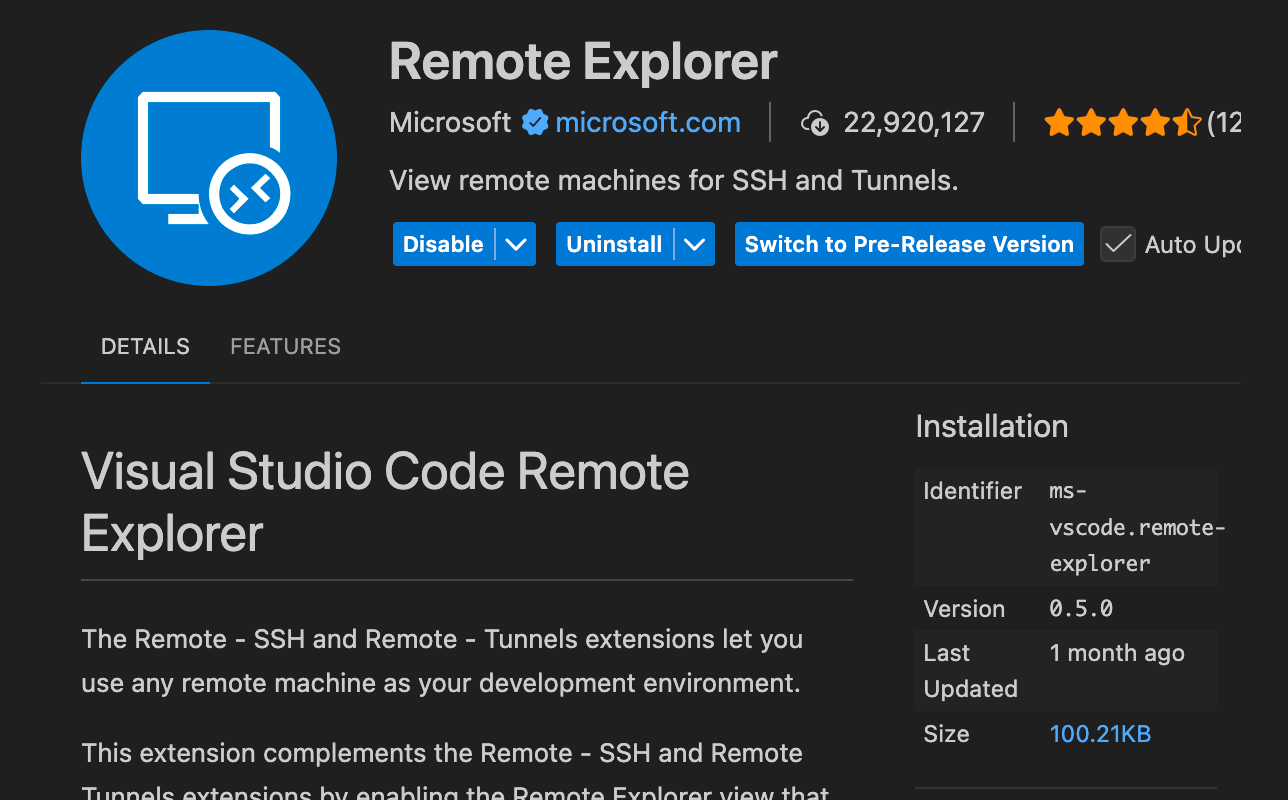
- Install the Extension: I installed the Remote - SSH extension for VS Code.
- Connect as Host: Instead of just SSH-ing in the terminal, I used the extension to open a new VS Code window hosted on the server.
- Command Palette -> Remote-SSH: Connect to Host...
- Unleash the Agent: Once the window loaded, I opened the Agentic mode (e.g., Copilot or Cursor's Agent).
Why This Worked
The difference was night and day. Because VS Code was running remotely:
- Context Awareness: The AI Agent could index the remote file system. It wasn't guessing based on terminal text; it was reading the actual config files.
- Execution: When I asked the Agent to "check the logs and fix the config," it could run diagnostic commands, read the output, apply a patch to the file, and restart the service autonomously.
- Stability: No more timeouts. The agent had direct access to the environment.
The Result
Within minutes of setting up the Remote-SSH session, the Agent diagnosed the issue that had plagued me for two days. It proposed a fix within next 3 hours of debugging, I reviewed the diff, and we were back online.
If you are struggling with server issues and considering expensive external tools, try leveraging the Remote - SSH extension first. It turns your IDE into a remote command center and gives your AI tools the context they need to actually help you.
Key Takeaways
- Don't just SSH in a terminal: Simple terminal sessions limit your AI's ability to "see" the problem.
- Use Remote Environments: Tools like VS Code Remote - SSH allow AI agents to interact with the remote file system directly.
- Save your money: You often don't need a separate enterprise license for server debugging if you know how to bridge your local tools to your remote environment.